# Activate Firehose
Activate Firehose on your computer so it can start agent sessions. Until you do, the dashboard shows an activation screen and nothing else works.
This page describes Firehose 1.0.1. You need a Firehose installation from [Install Firehose](/getting-started/install/) and an email address you can open on this device.
## Before you begin
Activation needs a paid subscription. If your account does not have one yet, you subscribe during activation. Billing starts the day you subscribe.
Activation happens in two browser tabs:
- **Your dashboard** at `http://localhost:4801` shows a code and waits.
- **The activation page** at `agents.okthink.ai/activate` is where you sign in, subscribe if needed, and approve the code.
## 1. Get an activation code
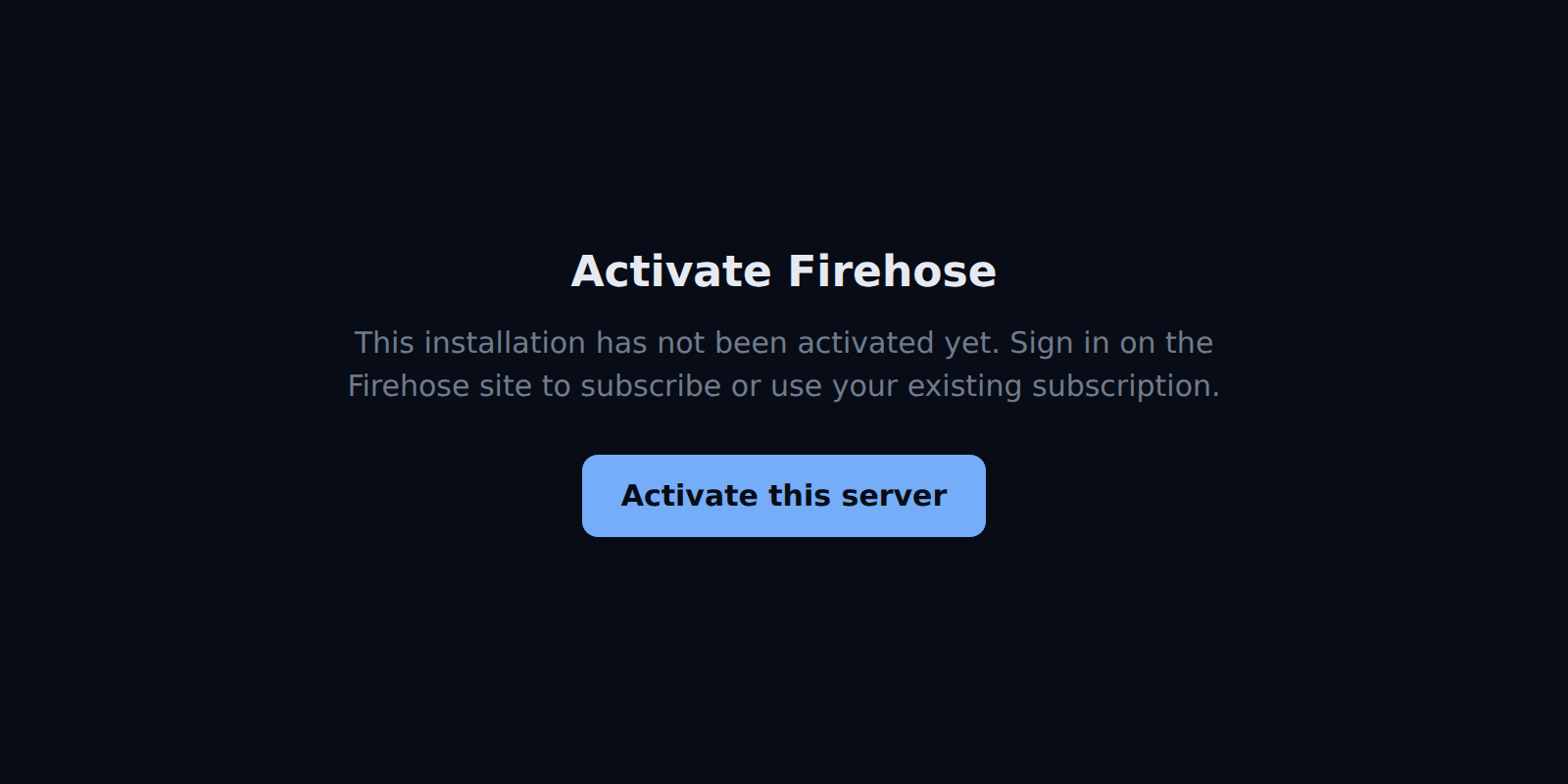
1. Open your dashboard. After a fresh install, it is already open and shows **Activate Firehose**.
2. Select **Activate this server**.
The dashboard before activation.
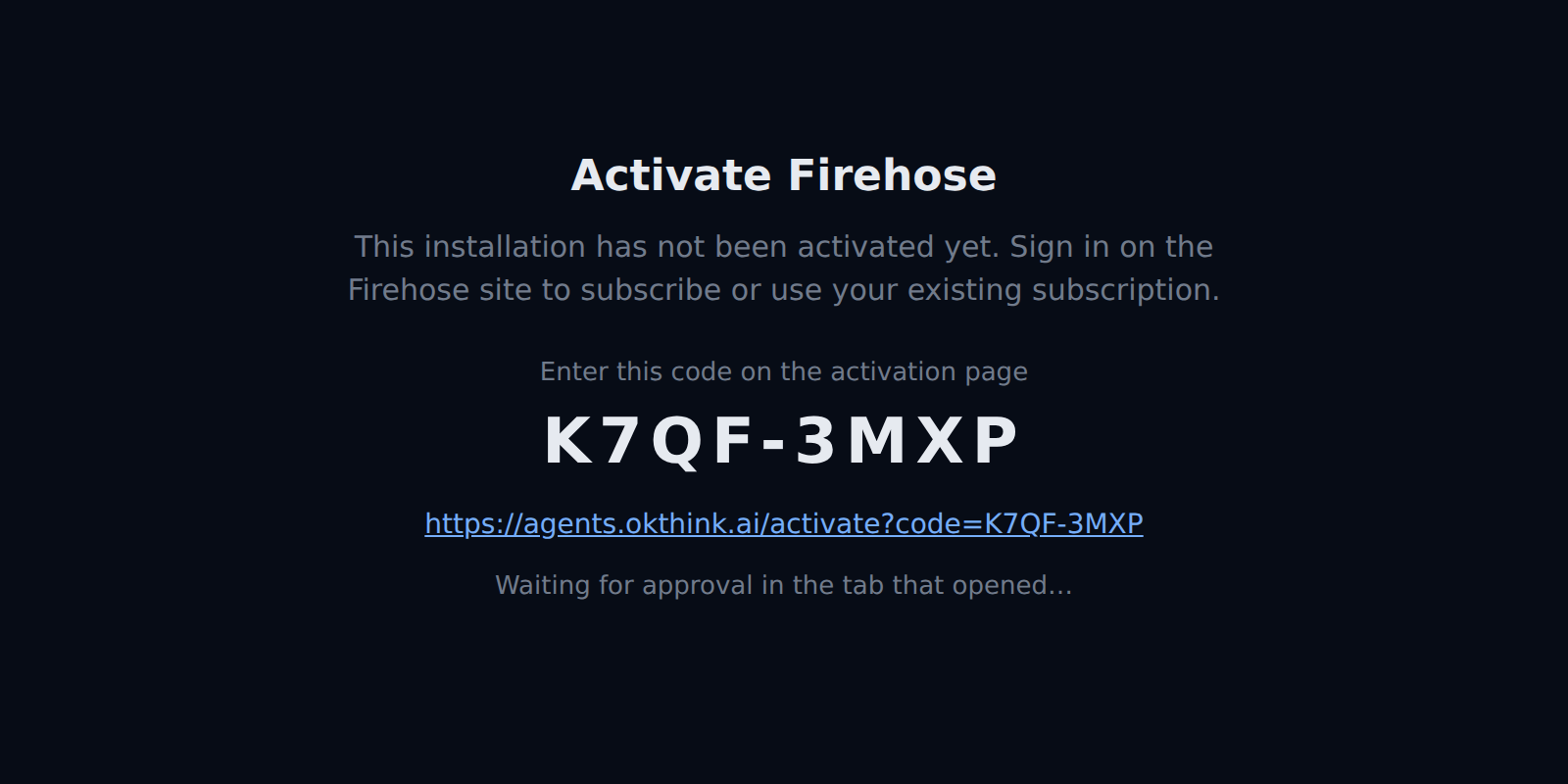
Firehose shows a code under **Enter this code on the activation page** and opens the activation page in a new tab. The dashboard says **Waiting for approval in the tab that opened…**. Leave it open. The code works for one hour. If no tab opened, select the link under the code.
The dashboard while it waits for approval. The code is an example; yours will differ.
## 2. Sign in with your email
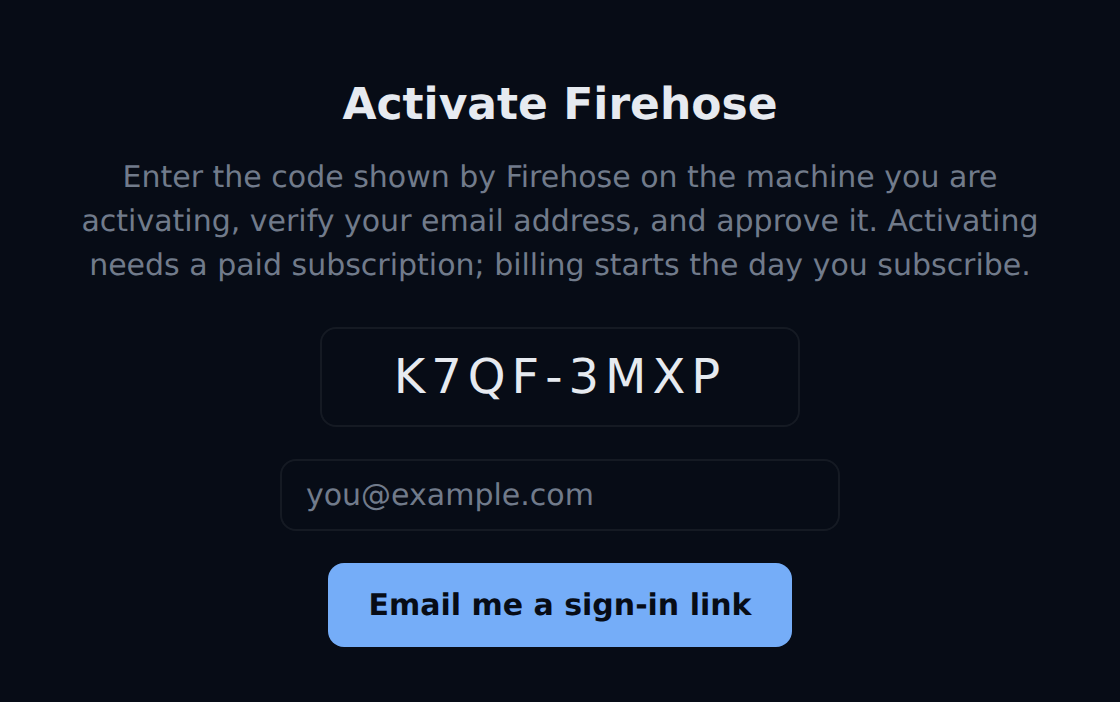
The activation page opens with your code already filled in. Type it in if the field is empty.
Enter your email address and select **Email me a sign-in link**.
The activation page before you sign in. The code and email address are examples.
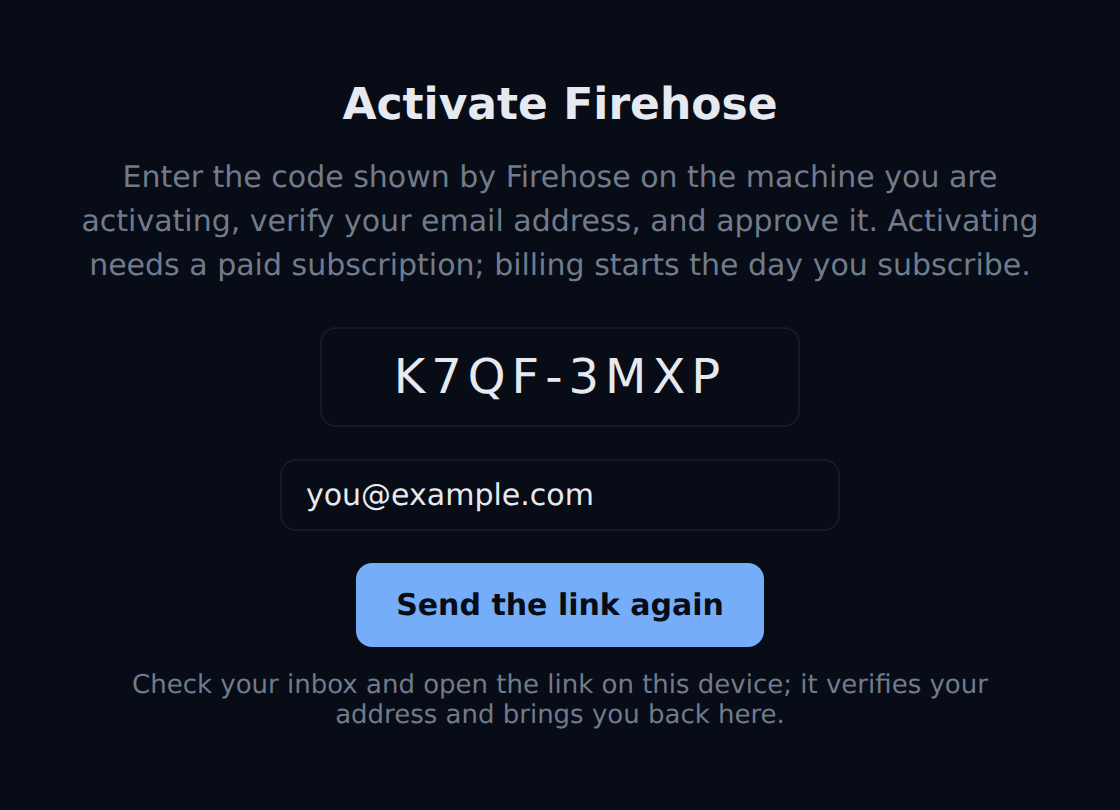
The page then says **Check your inbox and open the link on this device; it verifies your address and brings you back here.** Open the email on this same device and select its link.
After you ask for the link. The code and email address are examples.
## 3. Approve the code
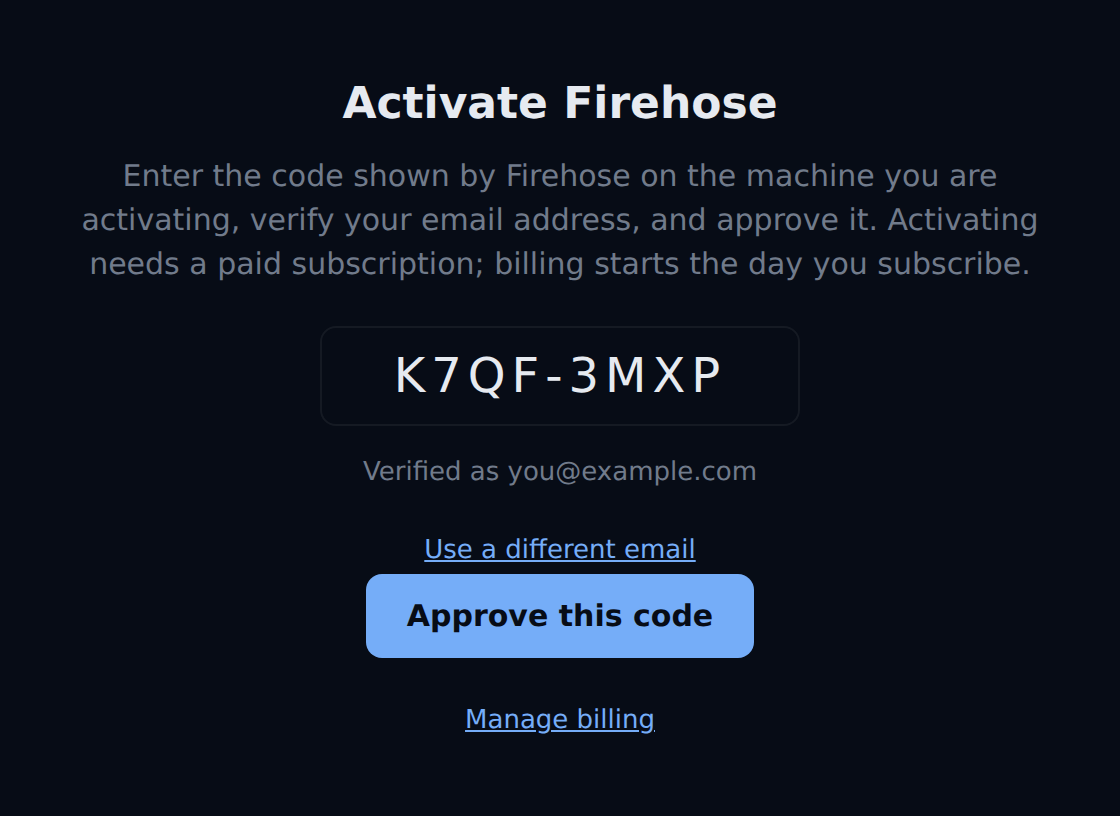
Back on the activation page, it shows **Verified as** and your address. Your subscription belongs to this address. To use another one, select **Use a different email**.
Select **Approve this code**.
Signed in and ready to approve. The code and email address are examples.
What happens next depends on your subscription.
### If you already subscribe
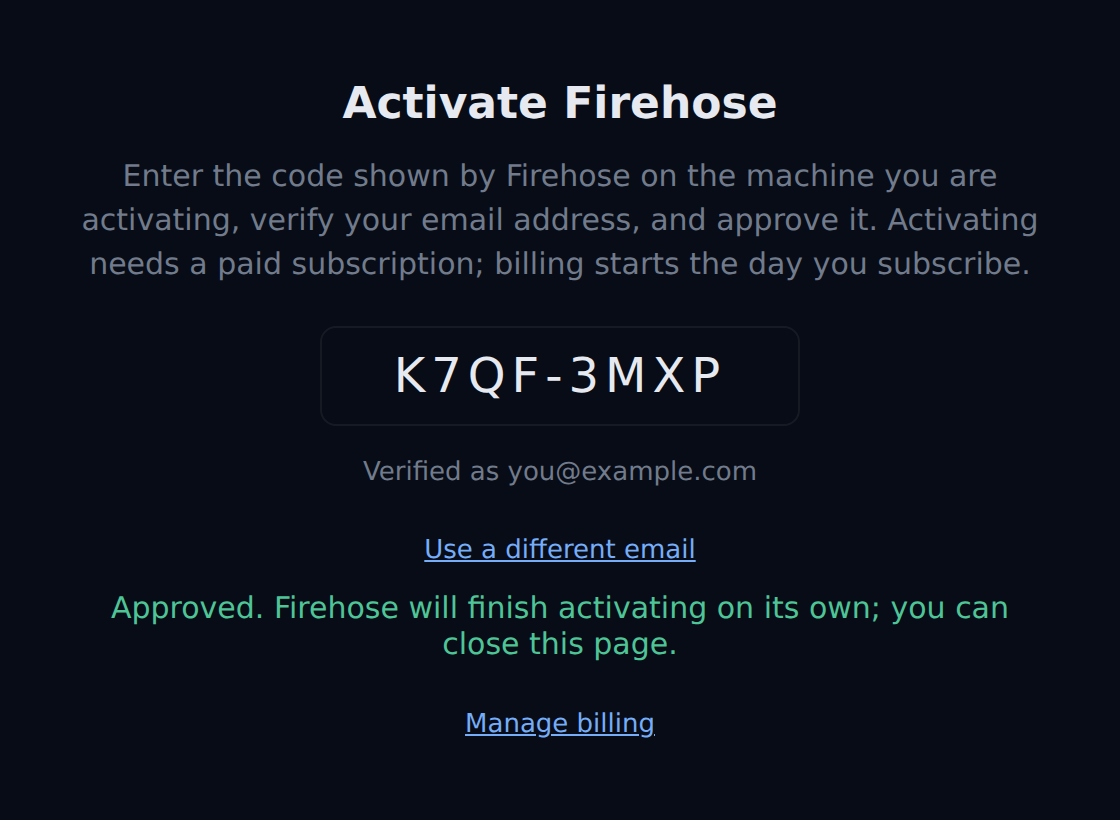
The page says **Approved. Firehose will finish activating on its own; you can close this page.**
The code is approved. The code and email address are examples.
### If you do not subscribe yet
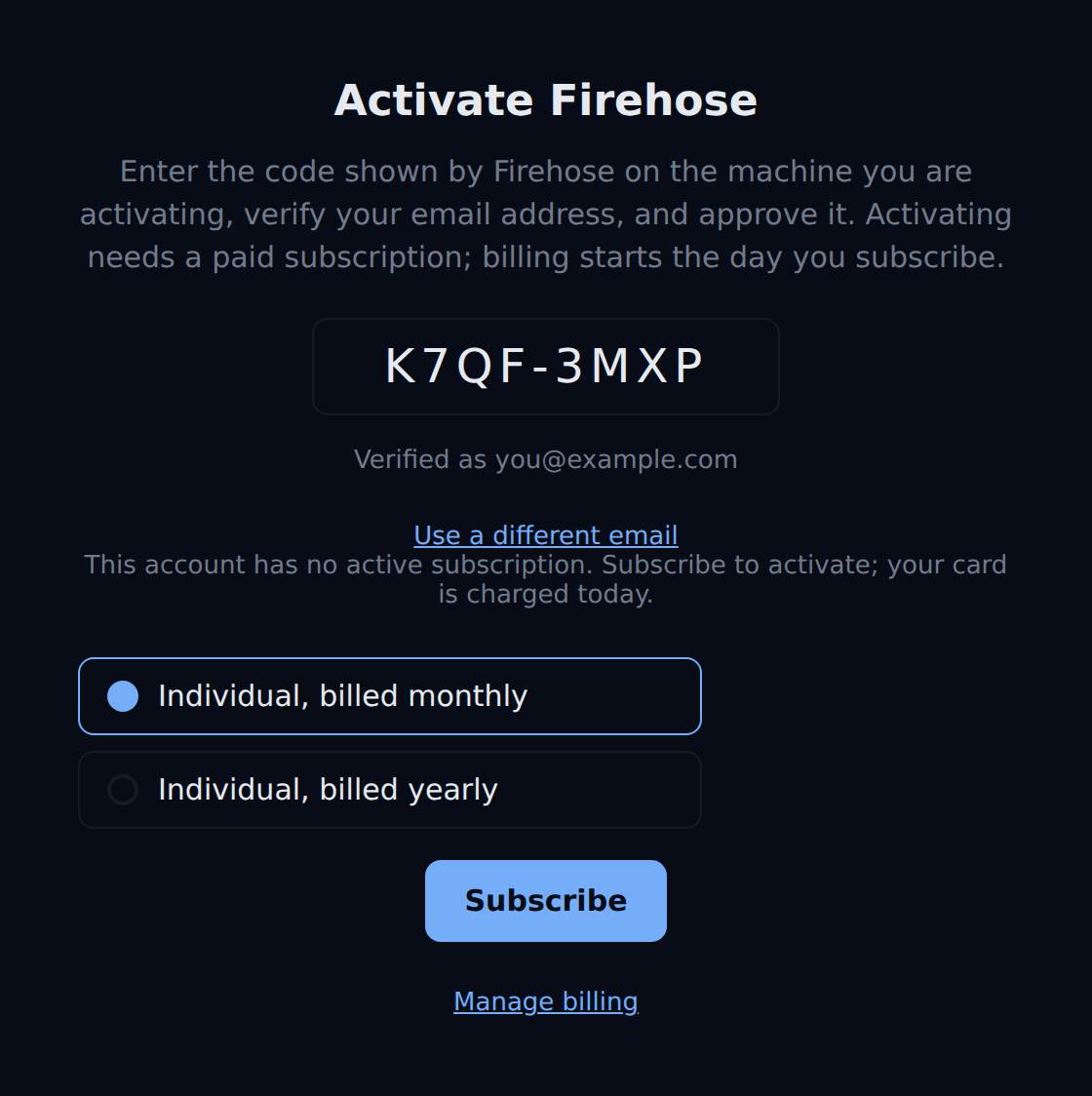
The page says **This account has no active subscription. Subscribe to activate; your card is charged today.**
1. Choose **Individual, billed monthly** or **Individual, billed yearly**. The checkout page shows the price.
2. Select **Subscribe** and pay on the checkout page.
3. When you return to the activation page, select **Approve this code** again.
Choosing a plan. The code and email address are examples.
### If your subscription needs attention
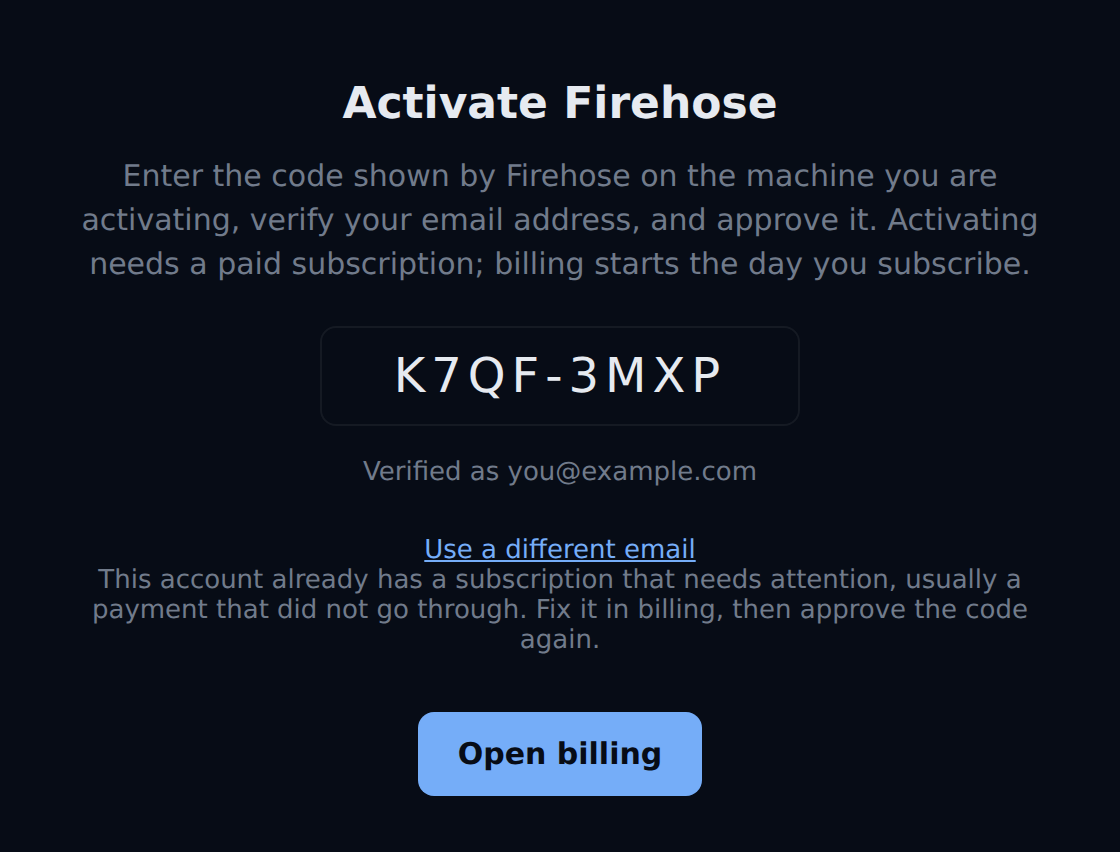
The page says the subscription needs attention, usually because a payment did not go through. Select **Open billing**, fix the payment, then select **Approve this code** again.
A subscription with a failed payment. The code and email address are examples.
## 4. Check the result
Return to your dashboard tab. Within a few seconds, the activation screen closes and Firehose opens with the **Sessions** sidebar. You do not need to reload. See [Find your way around Firehose](/getting-started/find-your-way/) for what you are looking at.
Next, [connect to Firehose](/getting-started/connect/) and check that your agent is ready.
## Manage your subscription
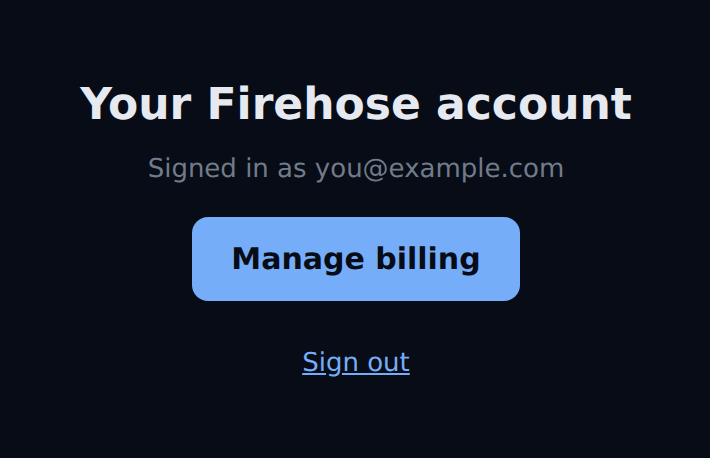
Open `agents.okthink.ai/account` and sign in with an email link. Select **Manage billing** to open your billing details. The activation page also has a **Manage billing** link once you are signed in.
The account page. The email address is an example.
## If Firehose asks you to reactivate
You do not need to reactivate after time away. Firehose renews its license on its own, including right after the computer starts.
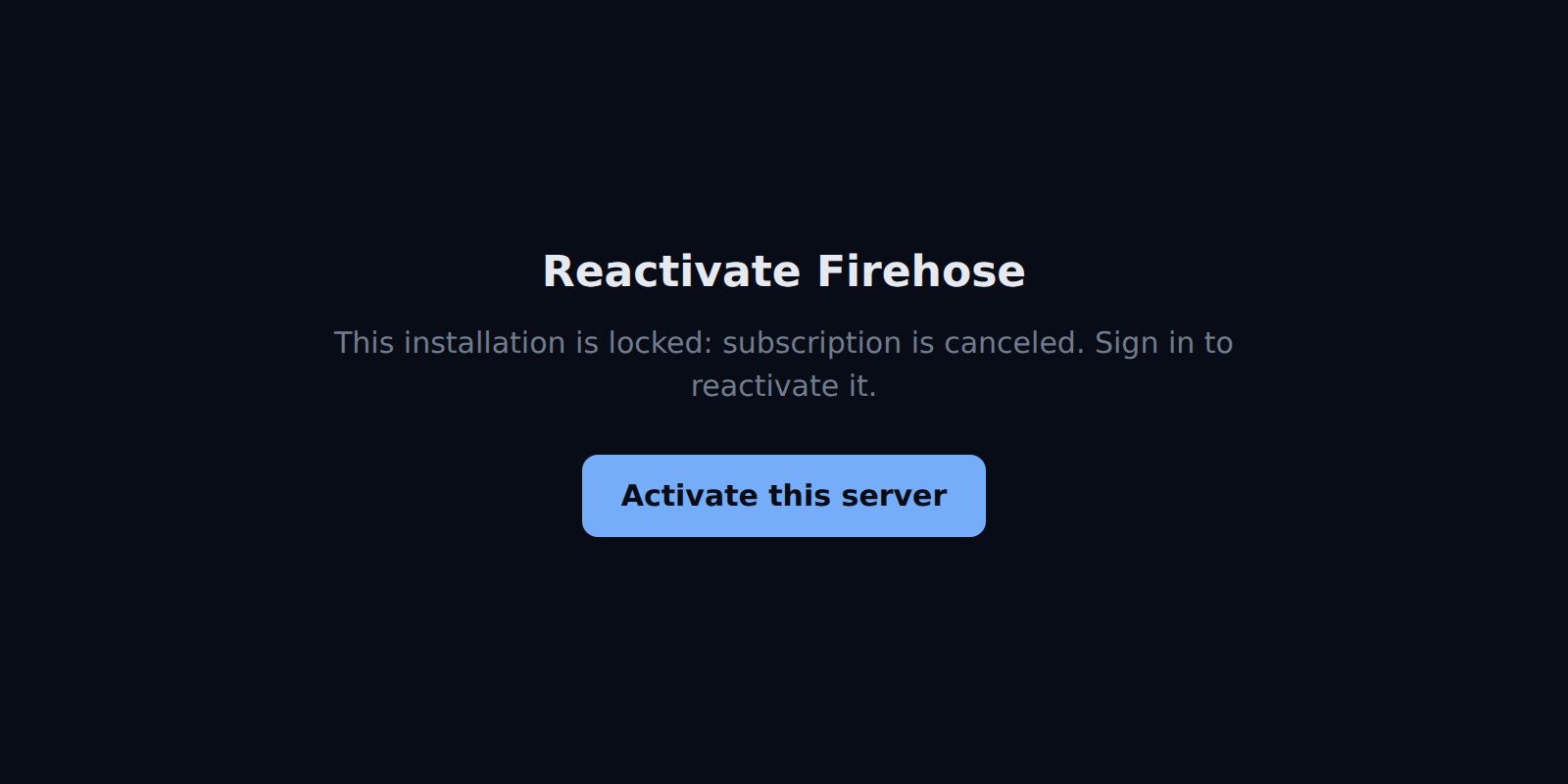
The dashboard shows **Reactivate Firehose** only when a renewal fails:
- **Your subscription stopped,** for example it was canceled or a payment failed. The screen names the reason. Fix it at `agents.okthink.ai/account`, and Firehose unlocks on its own at its next check, within about an hour.
- **Firehose could not reach the license service for 14 days** while it kept running. Reconnect the computer to the internet, and Firehose unlocks at its next check.
To unlock right away instead of waiting, select **Activate this server** and repeat the steps above.
A locked installation, with the reason the license service gave.
## If activation does not finish
| What you see | What to do |
| --- | --- |
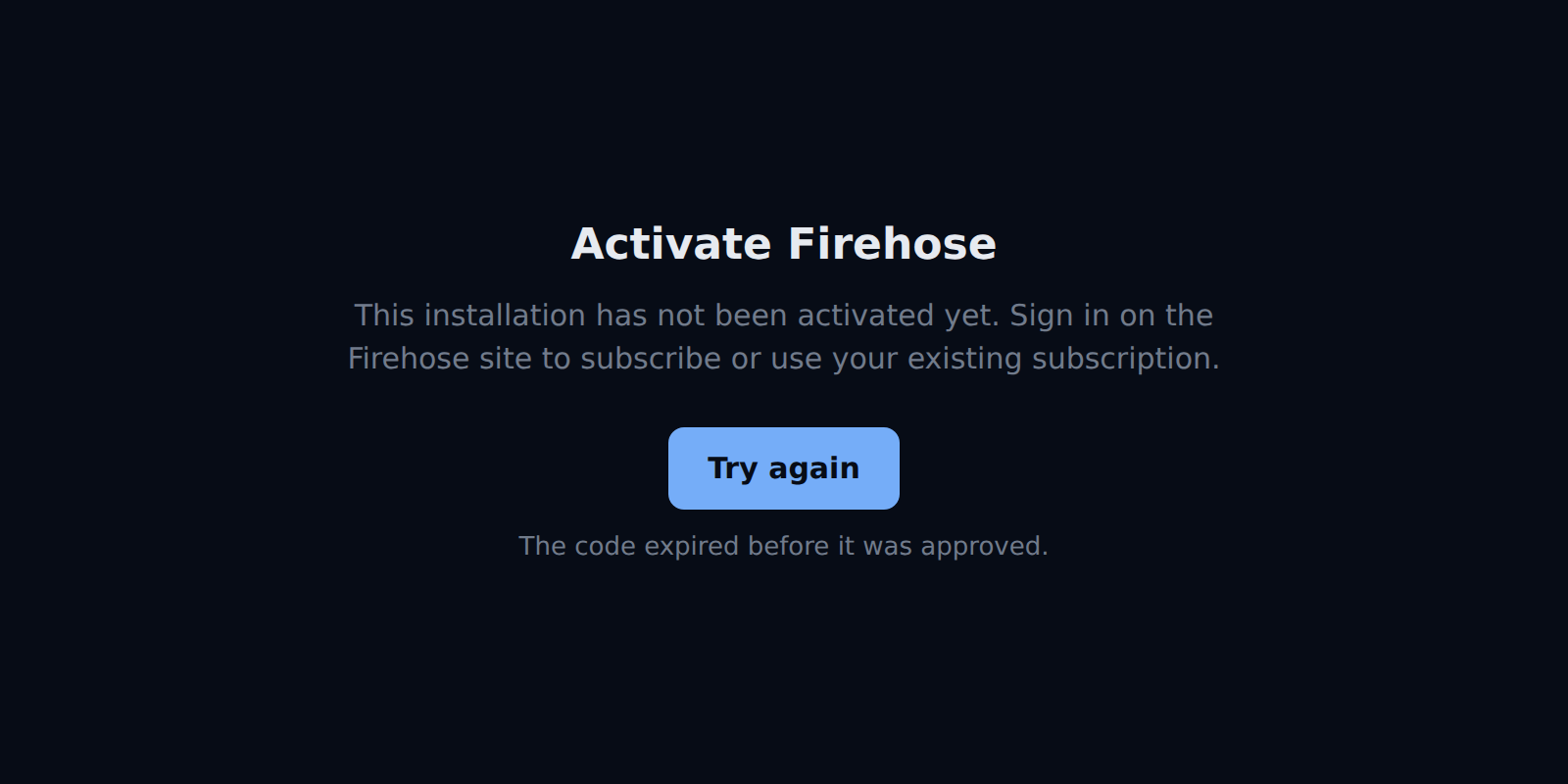
| **The code expired before it was approved.** | More than an hour passed. Select **Try again** for a new code. |
| **The activation was not approved.** | Select **Try again**. If it happens again, check your subscription at `agents.okthink.ai/account`. |
| The dashboard keeps waiting after the page said the code was approved | Check that the computer is online, then wait a minute. Firehose checks for approval every few seconds. |
| The sign-in email does not arrive | Check your spam folder, then select **Send the link again**. |
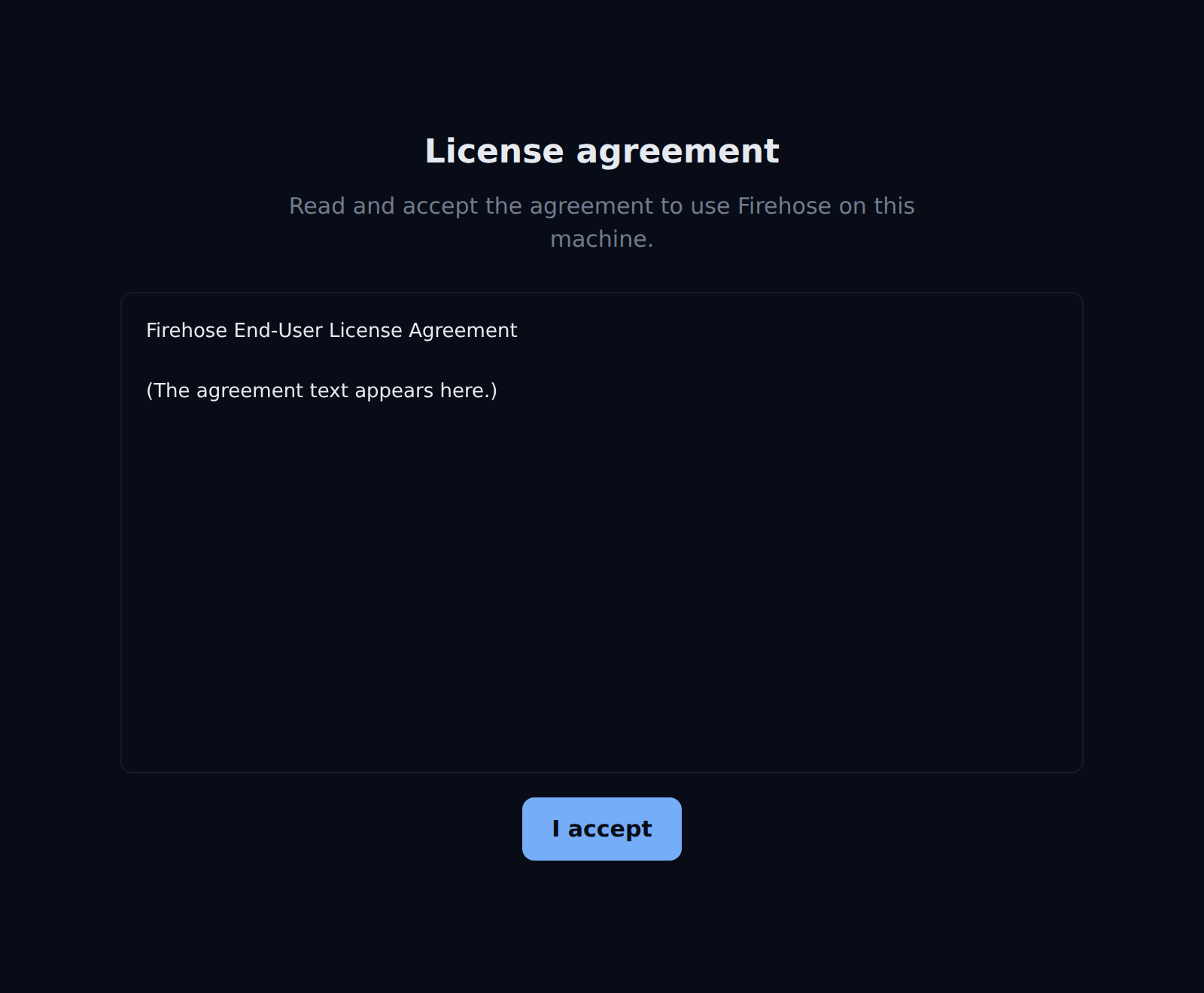
| **License agreement** instead of **Activate Firehose** | Read the agreement, also available as the [published end-user license agreement](https://github.com/okthink-ai/firehose-releases/releases/latest/download/EULA.md), and select **I accept**. This appears if the agreement was not accepted during installation. |
An expired code.The license agreement screen. The agreement text is shortened here; read the full agreement on the screen or at the link above.