
Use a questionnaire when a task needs decisions before implementation. Your answers become a message that tells the selected agent to continue the requested work.
Before you begin
Section titled “Before you begin”Open the intended session and confirm its project and branch. Use a session where chat input is available. If you can only read old history or the session cannot accept input, start a new session in the intended workspace before requesting questions.
Example starting state: the original greeting.mjs is committed, inputs are strings, and blank strings return Hello, !. Use this optional step before the change guide. If you already added the fallback, choose a new decision instead of asking questions whose answers are now in the code.
1. Request a questionnaire
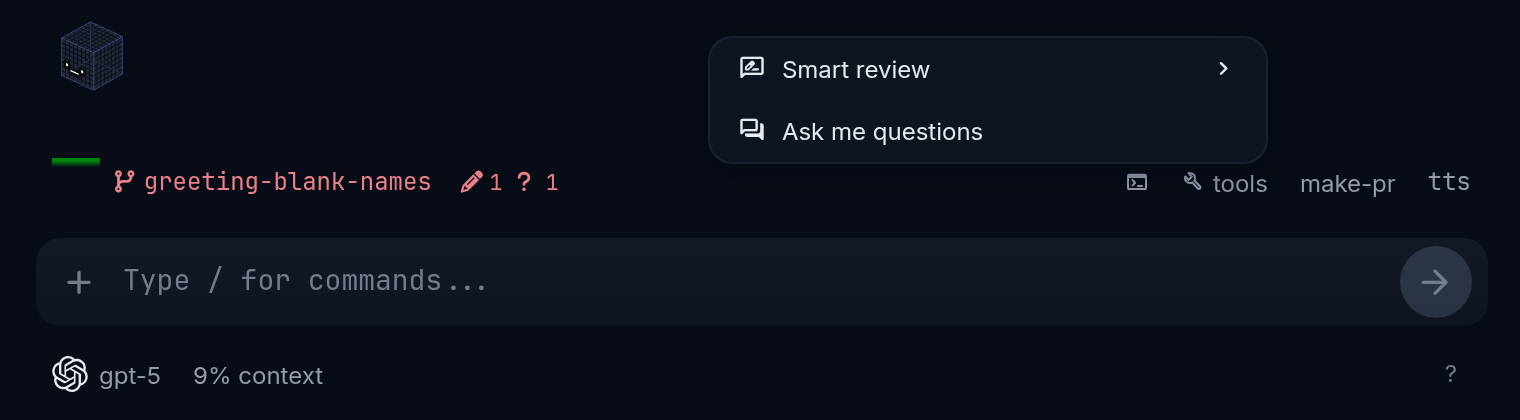
Section titled “1. Request a questionnaire”- On the prompt bar above the message box, select tools, then Ask me questions.
- In Ask me clarifying questions, enter the topic below.
- Choose an Interview depth, then select Ask questions.
main or master. Sample project.Improve greeting.mjs for empty and spaces-only strings.Keep the input contract limited to strings.Ask about fallback text and checks before editing.After I submit answers, implement the agreed change and tests.Do not commit or push.If ask me questions shows a count, it opens the unfinished questionnaire instead of starting another. Only one questionnaire can be unfinished per worktree.
2. Choose how much to explore
Section titled “2. Choose how much to explore”| Interview depth | Requested questions | When it fits |
|---|---|---|
| Quick | 3 | A small change with a few unresolved choices |
| Standard | 5 | Several related decisions |
| Thorough | 10 | Broad or ambiguous work with many consequences |
The agent is instructed to ask fewer if additional questions would be filler. Depth requests a question count; it does not change the model’s reasoning-effort setting or guarantee a response time.
For the greeting task, a short interview might cover fallback text, whitespace, and tests. A longer interview for an entire greeting screen might also cover localization, validation messages, and accessibility. These are illustrative scopes, not captured questionnaires or promises about the generated wording. Do not expand the small function task merely to fill ten questions.
3. Answer when it is your turn
Section titled “3. Answer when it is your turn”Select the Ask me tab at the top of the session; it reads Ask me (N) when questions are waiting. Queued means the request is waiting behind the current turn. During generation, the panel says the agent is reading code and writing questions. Your turn indicates that answers are ready to complete. The panel also shows how many questions were requested and written.
Read each question and its option descriptions. Answer required questions; add text where the question offers a field. Show captured context, when present, displays the background saved with the request.
For example, a question could ask: “What should a blank name produce?” You might choose “Use guest” and add “Keep trimming nonblank strings; keep the inputs limited to strings.” This is a sample answer, not exact product-generated text.
4. Submit to the intended session
Section titled “4. Submit to the intended session”- Check the selected session in the same worktree. Sessions sharing that worktree see the same unfinished questionnaire.
- Confirm your answers and any remaining task constraints.
- Select Submit to followed by the provider’s name, such as Submit to Claude Code or Submit to Codex, when the set is ready and required answers are complete.
Submission tells the receiving agent to summarize its understanding and begin the requested work. There is no additional confirmation step in that instruction. If you only want a proposal, state that limited task in the original topic and your answers before submitting.
Expected result: after confirmed delivery, the questionnaire disappears. Open the receiving session’s conversation and look for [Smart User Questions — answers]. That message includes the original topic, captured background when available, questions, chosen options, and written answers.
In the example, check that the delivered answer includes guest, trimming, and the strings-only constraint. Then compare the agent’s continuation with those decisions. The message’s exact formatting includes question identifiers; you do not need to copy those identifiers to continue the task.
If delivery or generation fails
Section titled “If delivery or generation fails”A failed answer delivery leaves the questionnaire available. Read the error, confirm that the receiving session accepts input, and use delivery troubleshooting before retrying Submit to the provider.
Failed or Cancelled sets stay visible until you choose Remove. Removing a set deletes its questions and saved answers. Preserve information you still need first. If the set says Expired, its original session has changed; read the explanation rather than expecting the old request to continue.
For a small clarification, simply send a chat message. After this example’s answers are delivered, use the change guide’s checks to verify the work; do not send its implementation prompt again if the agent already began the same task.